


Introduction
Welcome to the AppVault documentation. This guide will help you understand how to use AppVault to organize your applications and streamline your workflow.
What is AppVault?
AppVault is a modern application launcher that helps you organize your desktop shortcuts into clean, categorized groups. Say goodbye to desktop clutter and hello to efficient workflow management.
Organization
Group your applications by category, project, or workflow.
Speed
Launch any application in seconds with quick search and access.
Customization
Personalize the appearance to match your style and preferences.
Installation
Download AppVault
Choose your preferred installation method in the download modal window.
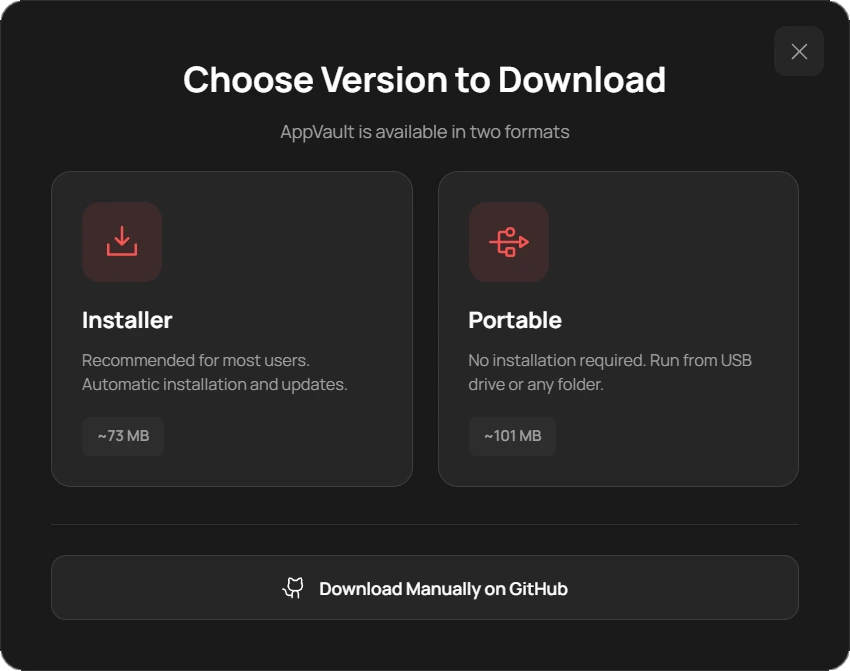
Run the Installer
If you downloaded the installer, simply run the executable and follow the installation wizard.
You may need administrator privileges to install AppVault.
Launch AppVault
After installation, launch AppVault from your Start Menu or desktop shortcut.
Getting Started
Creating Sections
Create sections to organize your applications logically:
- Click the "+ New Section" button in the sidebar menu to add a section
- Name your section (e.g., "Work", "Games", "Utilities")
- Add shortcuts to the section
Adding Shortcuts
There are multiple ways to add applications to AppVault:
Drag & Drop
Simply drag any executable file or shortcut into the AppVault window.
EasiestAdd Manually
Click the «+» icon inside the created section, or right-click on the section name in the sidebar menu.
QuickLaunching Apps
Launch applications quickly using any of these methods:
- Click: Double click on any shortcut
- Search: Click on the search field in the sidebar menu and enter the shortcut name
- Run as Admin: Right-click on the shortcut → "Run as Administrator"
Settings
Appearance
Theme
Choose between Dark and Light themes.
Settings → Appearance → Theme
View Mode
Switch between Grid view (visual) and List view (compact information density).
Settings → Appearance → View Mode
Sidebar Position
Adjust the sidebar to appear on the left or right side of the window.
Settings → Appearance → Sidebar
General
Start with Windows
Launch AppVault automatically when Windows starts.
Settings → General → Start with system
Minimize to Tray
Minimize to system tray when the window is closed.
Settings → General → Minimize to tray on close
FAQ
Support
Discord Community
Join our Discord server for real-time support and community discussions.
Join Discord